
Looking for the best USB formatter in 2026? We’ve rounded up the top 8 tools, from free classics to powerful all-in-one options. These 8 best USB formatters help you format a USB quickly and safely.
Best USB Formatter: Top 8 Tools to Format USB Drives
Sometimes, USB flash drives become unreadable or unwriteable, display incorrect capacity, or have corrupted file systems. That’s where dedicated USB formatters come in. Whether you’re preparing a USB drive for bootable installations or cross-device sharing, a USB formatter helps you solve this problem easily.
A USB format tool is specialized software that reformats USB drives to file systems like FAT32/exFAT/NTFS. In this guide, we cover the top 8 best USB formatters based on speed, ease of use, compatibility, and real-world reliability.
Key Factors for Choosing the Best USB Formatter
With numerous USB format tools available, selecting the right one requires understanding what factors matter most. A good formatter should do more than just erase data. The essential criteria always include compatibility, reliability, support for the file systems, and the right balance between simplicity and advanced features.
Here’s a quick comparison table to match the 8 best USB formatters.
| Tool | File Systems | Support Capacity | Format Speed | Best For |
| EaseUS Partition Master Free | FAT32, NTFS, exFAT, EXT2/3/4 | Up to 16TB+ | Fastest in our test | All-purpose formatting + partition management |
| Disk Management | FAT32, NTFS, exFAT | 32GB max for FAT32 | Moderate | Built-in Windows quick fixes |
| File Explorer | FAT32, NTFS, exFAT | 32GB max for FAT32 | Moderate | Simple everyday formatting |
| Rufus | FAT, FAT32, NTFS, exFAT, UDF | Up to 2TB+ | Very Fast | Bootable USB creation |
| FAT32 Format | FAT32 only | Large size | Moderate | Guaranteed large FAT32 formatting |
| HP USB Disk Storage Format Tool | FAT, FAT32, NTFS | Up to 512GB | Moderate | Write-protected/stubborn drives |
| HDD Low-Level Format Tool | All (low-level) | Not clearly defined | Very Slow | Bad sector repair + secure wipe |
| Kingston USB Format Utility | FAT32, NTFS | Kingston up to 128GB | Moderate | Official Kingston drive reset |
Top 8 Best USB Formatters
1. EaseUS Partition Master Free
💰Price: Free (with Pro upgrade available)
💻Compatibility: Windows 11, 10, 8.1, 8, 7, XP, and Vista
📁File Systems Supported: FAT32, exFAT, NTFS, EXT2/3/4, ReFS
👍Best for: All-round formatting, large drives, partition fixes
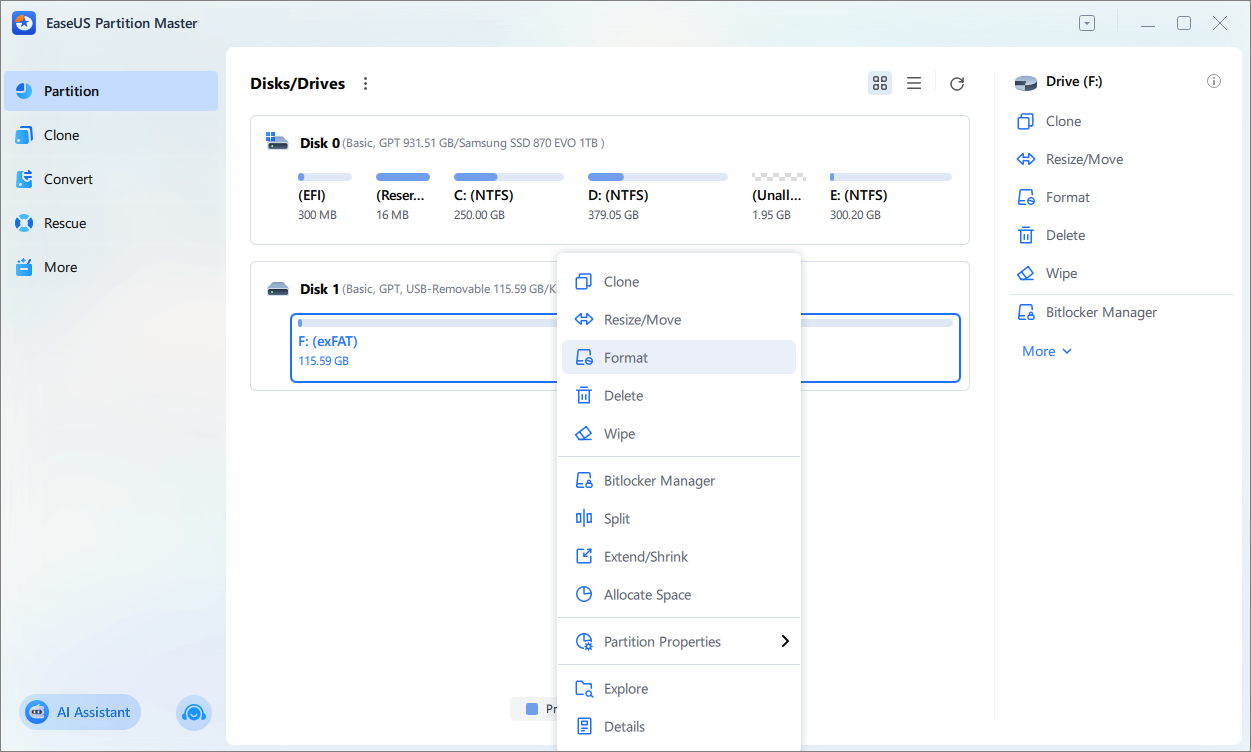
EaseUS Partition Master Free excels in USB drive formatting and disk management. Its clean interface lets users easily format and repair drives without using the command line. Whether you want to format a USB drive over 32GB or create a bootable USB drive, this top USB format tool delivers. The formatting process is safe and fast, even for damaged or write-protected USBs.
This top USB formatter also supports system migration, disk conversion, and partition recovery. This makes it a complete and reliable solution for managing both internal and external storage devices.
| Pros | Cons |
|
|
Certified Review: EaseUS Partition Master Free Edition is incredibly simple to use. For example, you can resize a partition and format the resulting unallocated space. – From Lifewire
2. Disk Management
💰Price: Free
💻Compatibility: Windows 11, 10, 8.1, 8, 7, XP, and Vista
📁File Systems Supported: NTFS, exFAT, FAT32 (up to 32GB limit)
👍Best for: Quick format when you don’t want to download anything
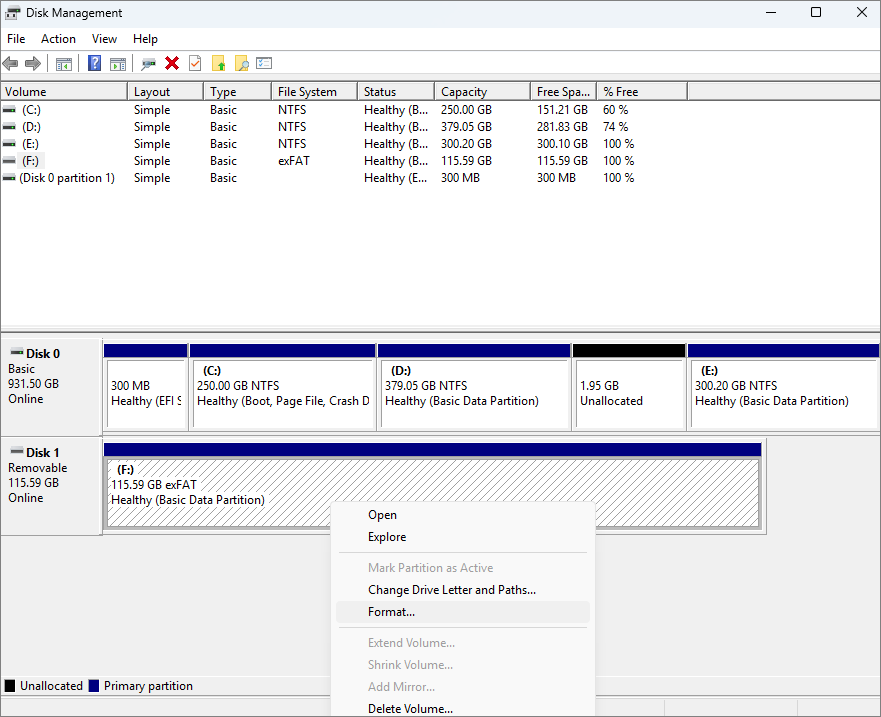
Disk Management is built into Windows as a core utility. It provides basic tasks for creating, deleting, formatting, and resizing partitions. Disk Management is well-suited for managing USB drives, such as creating new partitions or handling basic USB disk formatting tasks. This USB format tool allows users to format USB and other drives to NTFS, FAT32, and exFAT. It’s reliable for everyday USB flash drive operations and troubleshooting common issues, such as unallocated space or basic error fixes.
| Pros | Cons |
|
|
Certified Review: Disk Management is a system utility in Windows for advanced storage operations. – From Microsoft Learn
3. File Explorer
💰Price: Free
💻Compatibility: Windows 11, 10, 8.1, 8, 7, XP, and Vista
📁File Systems Supported: NTFS, exFAT, FAT32 (limited)
👍Best for: Seeking super simple ways for everyday formatting
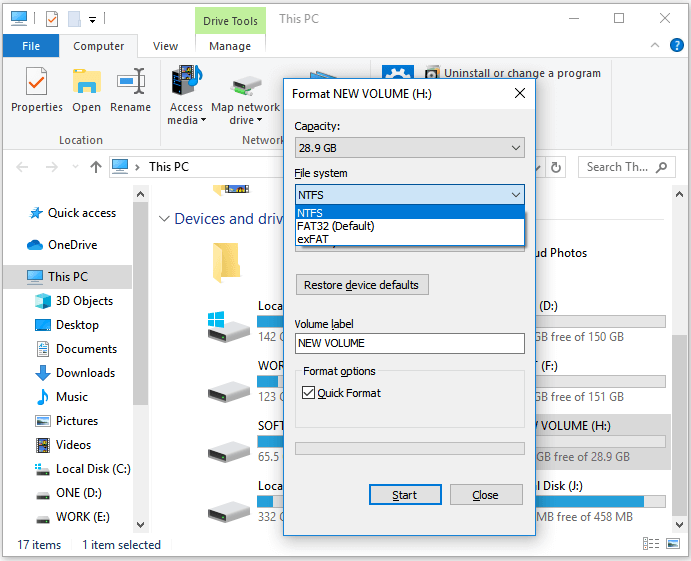
File Explorer is the built-in file manager in Windows. It provides the simplest and best USB formatter option. You can right-click your USB drive and select Format to set up NTFS on a new drive. This USB formatter is ideal for routine tasks such as formatting a USB flash drive for NTFS or exFAT compatibility.
| Pros | Cons |
|
|
Certified Review: File Explorer is a file browser that helps you access, view and manage all the files stored on your computer. – From Lenovo
4. Rufus
💰Price: Free
💻Compatibility: Windows 11, 10, 8, 7, XP
📁File Systems Supported: FAT32, exFAT, NTFS, UDF
👍Best for: Creating bootable USBs and large FAT32 formats
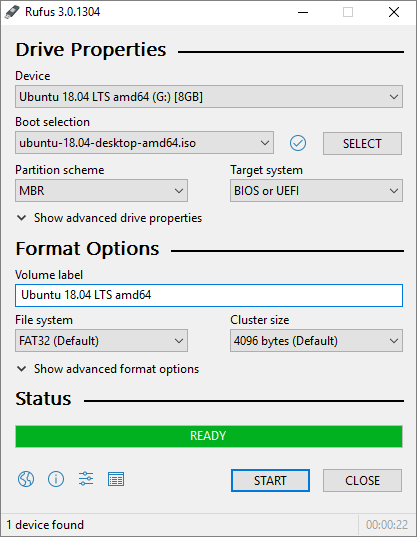
Rufus is a free and open-source tool that formats USB drives and creates bootable USB flash drives from ISO files. It allows users to format a USB to FAT32, exFAT, or NTFS. This best USB formatter bypasses Windows 32GB FAT32 limits easily. It’s also a portable USB format tool that runs anywhere without installation.
| Pros | Cons |
|
|
Certified Review: Rufus is a free, open-source utility that allows you to create bootable USB drives. – From Lenovo
5. FAT32 Format
💰Price: Free
💻Compatibility: Windows / Mac / Linux
📁File Systems Supported: FAT32 only
👍Best for: Formatting large drives to FAT32
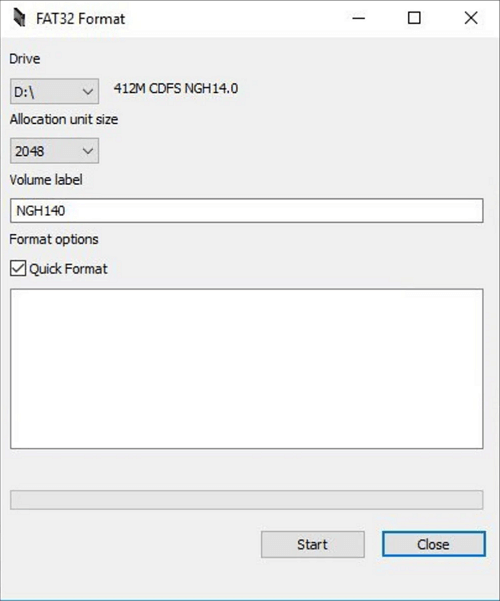
FAT32 Format is the best USB formatter that bypasses Windows’ 32GB FAT32 limit. It supports converting 128GB or 256GB USB drives effortlessly for Mac compatibility. This lightweight USB offers a ‘Quick Format’ feature that simplifies the formatting process. As a dedicated USB disk format solution, it focuses on reliable USB flash drive format for cross-platform use, where FAT32 is required.
| Pros | Cons |
|
|
Certified Review: FAT32format provides a powerful yet easy-to-use command-line utility that helps you format your hard disks in the FAT32 file system. – From Softpedia
6. HP USB Disk Storage Format Tool
💰Price: Free
💻Compatibility: Windows XP, Vista, 7, 8, 10, and 11
📁File Systems Supported: FAT32, NTFS, FAT
👍Best for: Basic/quick formats on old operating systems
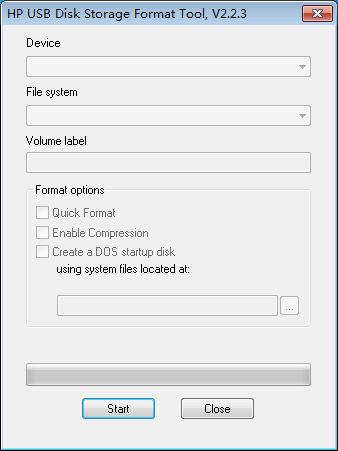
HP USB Disk Storage Format Tool is another best USB formatter designed by HP. It’s completely free, portable, and excels at quick formatting of USB flash drives across brands. This USB formatter is a solid choice for old hardware and stubborn USB disk issues. It helps format any USB drive to FAT, FAT32, and NTFS.
| Pros | Cons |
|
|
Certified Review: HP USB Disk Storage Format Tool streamlines USB maintenance for players moving installs, patches, and saves. – From Filehippo
7. HDD Low-Level Format Tool
💰Price: Free for personal use (with advanced paid)
💻Compatibility: Windows 11, 10, 8.1, 8, 7, XP, and Vista
📁File Systems Supported: All (low-level)
👍Best for: Perform low-level formatting and reset corrupted externals
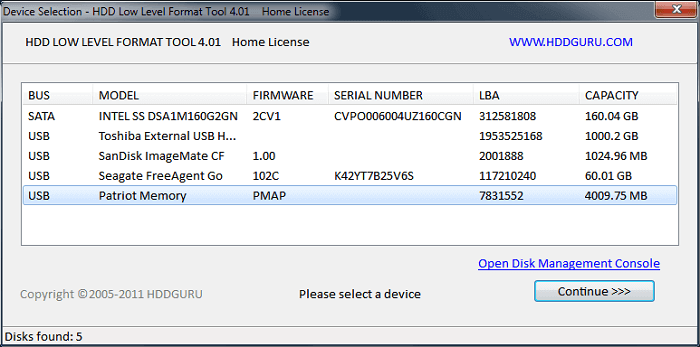
The HDD Low-Level Format Tool is among the best USB formatters for deep cleaning and data recovery. This USB formatter allows users to low-level format their external drives and wipe the device. It supports devices like HDDs, SSDs, USB flash drives, and SD cards. But pay attention, Low-level formatting completely erases all data and makes recovery extremely difficult. Always back up your data to avoid data loss.
| Pros | Cons |
|
|
Certified Review: HDD Low Level Format Tool stands out as a powerful and free tool designed to perform a true low-level format on a wide variety of storage devices. – From CNET
8. Kingston USB Format Utility
💰Price: Free
💻Compatibility: Windows 11, 10, 8.1, 8, 7, XP
📁File Systems Supported: FAT32, exFAT
👍Best for: Recovering or formatting Kingston USBs with issues
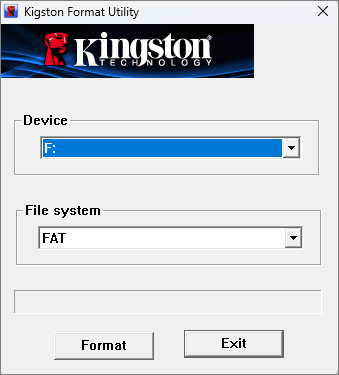
Kingston USB Format Utility is a lightweight, free Windows tool for formatting and restoring Kingston USB flash drives. It excels at resolving recognition issues, write protection, RAW file systems, and speed drops after cross-platform use. If you use a Kingston USB drive, this USB format tool is your top choice. While optimized for Kingston drives, it also works with other brands of hard drives.
| Pros | Cons |
|
|
Certified Review: Kingston Format Utility is an unassuming and small Windows piece of software that makes it as simple as possible for you to format a Kingston USB. – From Softpedia
How We Test the Best USB Format Tools
To provide you with trustworthy reviews of the best USB formatter, we have conducted comprehensive software testing. Our goal is to evaluate how these tools perform in everyday scenarios and select the most reliable ones for USB formatting.
Key Testing Criteria:
| Criterion | Weight | Description |
| File System Support | 25% | FAT32>32GB, NTFS/exFAT, MBR/GPT compatibility |
| Reliability | 30% | Success on damaged/write-protected USBs |
| Speed | 25% | Time for quick/full formats on 32GB-256GB drives |
| Ease of Use | 10% | Setup time, UI clarity, error messages |
| Features & Stability | 10% | Bad sector checks, bootable support, no crashes |
Test details:
- Number of tested software: 25
- Hardware Setup: Dell Inspiron (i7, Win11 24H2); MacBook Air (macOS Sonoma); Lenovo ThinkPad Linux (Ubuntu 24.04)
- Test drives: 32GB SanDisk Ultra; 128GB Kingston DataTraveler; 256GB generic USB-C drive; a problematic 64GB with simulated write protection.
- Test Scenarios: Quick vs full format across FAT32/NTFS/exFAT; Large capacity USB; Problem drives (write-protection removal, RAW filesystem); Post-format read/write speeds
Personal Pick for the Best USB Formatter
Based on USB formatter review and my years of formatting experience, I would like to give some thoughts on choosing the right tool. The key isn’t finding a single “best” tool, but understanding which tool excels at specific tasks. After extensive testing, I’ve found myself consistently reaching for just two applications. Here’s my detailed breakdown:
My Daily Driver & Problem Solver: EaseUS Partition Master
For me, EaseUS Partition Master is the all-in-one tool that lives on my primary Windows PC. When a USB drive acts up, this is my first and often last stop. Why I trust it:
- It has a rare combination of an intuitive interface and deep, powerful functionality.
- I like its large-capacity FAT32 formatting feature. Even with a 16TB USB drive, this tool completed the task successfully.
- Its ability to force-format a “damaged” drive or bypass soft write-protection has saved me multiple times when Windows’ own tools just threw up error messages.
My Specialist Tool for Precision Jobs: Rufus
I like Rufus because it is a free, open-source tool. I doubt any IT person would say no to open-source tools. It serves as a specific, mission-critical goal: to create a bootable USB drive from an ISO file. Why I trust it:
- I use it to create a bootable USB drive from an ISO file.
- It works correctly with precise control over the technical details that matter.
- The interface clearly shows all relevant options, and the tool provides intelligent defaults based on the selected ISO.
Conclusion
After thoroughly testing the top USB formatting tools, we found that the right software makes formatting easy and fast. Whether you’re troubleshooting a corrupted drive, preparing bootable installation media, or reformatting for cross-platform compatibility, the 8 tools in this guide provide professional-grade solutions for every user. You can choose the best USB formatter for your formatting needs.
FAQs
1. Which file system should you choose for USB?
Choosing the right file system for your USB drive depends entirely on how you plan to use it. Each major format is optimized for different scenarios involving device compatibility and file size needs. There is a brief comparison of these major file systems:
- exFAT: The best choice for modern cross-platform use, supporting large files over 4GB. Compatible with Windows and macOS, but may not work with older devices.
- NTFS: Ideal for Windows-only systems, offering advanced features like file permissions. On Mac and Linux, it’s usually read-only without additional software.
- FAT32: Maximum compatibility with almost all devices. However, it has a strict 4GB file size limit, making it unsuitable for large media files.
2. Why do you need to format a USB drive?
Formatting serves several practical purposes. It can fix corrupted drives that show errors or incorrect capacity; securely wipe sensitive data before disposal or repurposing; change the file system to improve cross-device compatibility; and prepare the drive for specific uses, such as creating bootable installation media.
3. What does low-level format mean?
Low-level formatting is a deep cleaning process that completely erases and resets the drive’s physical structure. Unlike standard formatting, which only removes file indexes, it scans every sector and marks bad sectors as unusable. That means it makes data recovery nearly impossible. This is useful for securely wiping sensitive data or attempting to revive severely corrupted drives.