
Windows says the drive needs to be formatted? USB drive shows up as unreadable? Or USB drive does not appear at all? No worry. This post elaborates on USB corruption, including “What does a corrupted USB mean?” and ” How to fix a corrupted USB without losing data?”
USB corruption usually means the file system is damaged, not that the flash memory itself has failed. If you use USB repair tools correctly and avoid risky actions, you can often repair the USB drive without data loss.
Why Is a USB Drive Corrupted and Unreadable?
USB Pen Drive corruption rarely happens without warning. In most cases, it is caused by usage habits, system interruptions, or compatibility issues rather than physical damage.
Common Causes of USB Corruption
- A USB flash drive may become corrupted or unreadable due to:
- Unsafe removal while files are being transferred
- Sudden power loss or system crash
- Virus or malware infection
- Using the same USB drive across Windows, macOS, and Linux systems
- File system conflicts (FAT32, exFAT, NTFS incompatibility)
- Bad sectors developing over time
Typical Symptoms of a Corrupted USB Stick You May Notice
When a USB drive is corrupted, Windows often shows clear warning signs, such as:
- Error message “You need to format the disk before you can use it”
- The USB appears as RAW or Unallocated
- The drive letter is missing in File Explorer
- Files are inaccessible or disappear suddenly
- The USB shows 0 bytes of capacity
These symptoms indicate logical corruption rather than immediate hardware failure.
⚠️ Important Notice
Before attempting any fix, it’s critical to avoid actions that could make the situation worse. Do not:
- ❌Format the USB drive immediately
- ❌Keep unplugging and reinserting the device
- ❌Copy new files onto the corrupted USB
- ❌Run random repair tools without knowing what they do
These actions can overwrite recoverable data and significantly reduce your chances of a successful repair.
How to Fix a Corrupted USB Drive
In this part, you’ll learn 7 fixes to repair your corrupted USB drive without formatting or losing data.
Fix 1. Try Another USB Port or Computer
A faulty USB port, loose connection, or driver glitch can make a healthy USB appear corrupted. Try plugging the USB into a different port or another computer.
Fix 2. Check and Repair File System Errors
If the USB drive is detected but unreadable, file system errors are a likely cause. EaseUS Partition Master can check and repair random file system errors on a USB drive without formatting, which helps protect existing data. It also avoids the need to enter commands manually, making it suitable for beginners.
Key Features:
- ✔️Free of charge
- ✔️Supports Windows 11/10/8/7
- ✔️No data loss during file system checks
- ✔️Easy-to-use graphical interface
- ✔️Preview feature to confirm operations before applying changes
Step 1. Open EaseUS Partition Master, locate the disk, go to “Built-in Toolkits,” and select “Check File System”.
Step 2. In the Check File System window, select the drive letter of the target USB, tick the “Try to fix errors if found,” and click “Start”.
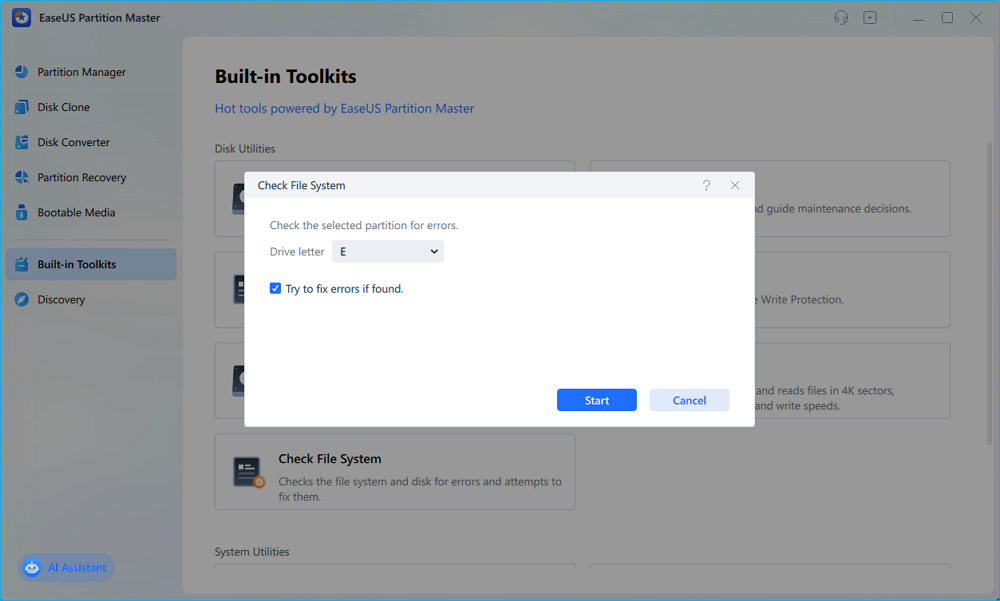
Step 3. The EaseUS disk checking software will begin checking your partition file system on your disk. When it completes, click “Finish”.
Fix 3. Use CHKDSK
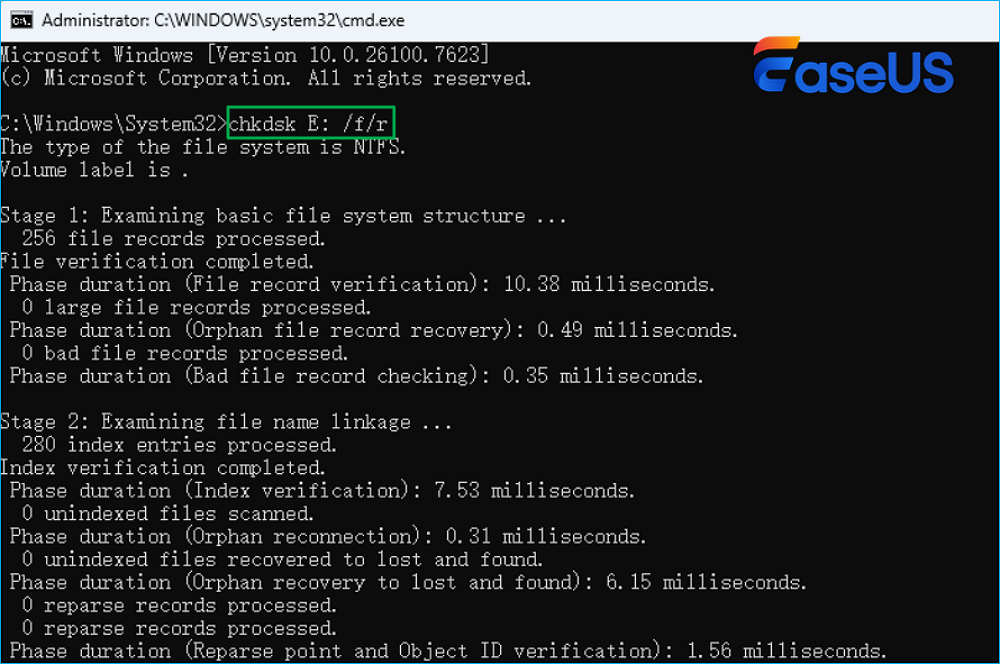
If you are comfortable using system commands, CHKDSK can scan the USB flash drive for logical file system issues and attempt repairs. It works best when the USB drive still has a recognizable file system. Here is how to run CHKDSK:
Step 1. Insert the corrupted USB drive into your computer.
Step 2. Press Windows + S, type cmd in the search box. Right-click Command Prompt and select Run as administrator.
Step 3. In the command window, type the following command and press Enter: chkdsk X: /f /r. (Replace X with the drive letter of your USB.)
Fix 4. Check the USB Drive Using File Explorer
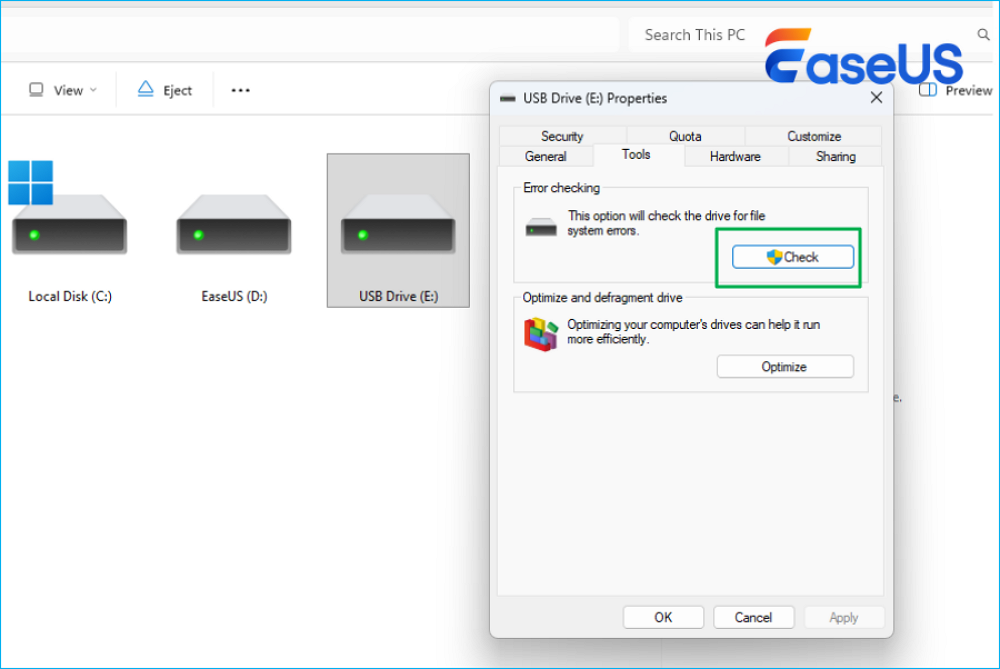
Windows File Explorer includes a basic disk-checking feature that can fix simple file system errors without using commands.
Step 1. Open File Explorer, right-click the corrupted USB drive, select Properties, and go to the Tools tab.
Step 2. Under Error checking, click Check. Follow the on-screen instructions to scan and repair the drive.
Restart your computer if prompted. Then check whether the corrupted USB drive has been restored to normal.
Fix 5. Reinstall the USB Driver
A corrupted or outdated USB driver can prevent Windows from reading a USB drive correctly. Reinstalling the driver forces Windows to reconnect. Follow these steps to reinstall the USB driver:
Step 1. Press Windows + X and select Device Manager, and expand Universal Serial Bus controllers.
Step 2. Locate the USB Mass Storage Device. If you are unsure which one corresponds to your flash drive, unplug the USB and plug it back in, watch which device disappears and reappears.
Step 3. Right-click the USB Mass Storage Device and select Uninstall device. When prompted, confirm the uninstallation.
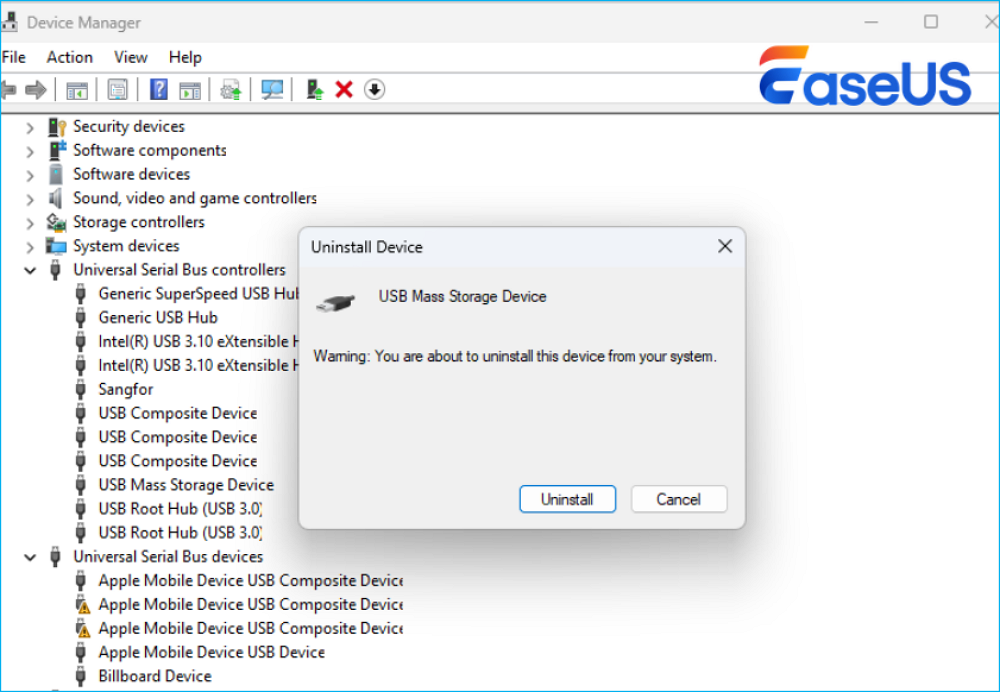
Step 4. Restart your computer. After Windows restarts, reinsert the USB drive. Windows will automatically reinstall the required driver.
Fix 6. Repair Corrupted USB Flash Drive with Windows Security
If malware is present, a USB drive can become unreliable or unreadable. Scanning the drive is essential before attempting further repairs. Windows Security allows you to scan the USB flash drive:
Step 1. Open the Start menu and search for “Windows Security.”
Step 2. Launch the Windows Security app > Go to Virus & threat protection > Choose Scan options.
Step 3. Select the Custom scan option and click Scan now.
Step 4. Select the corrupted USB flash drive and click Select Folder. Wait for the scan to finish.
Fix 7. Assign a Drive Letter to the USB Drive
If the USB drive does not appear in File Explorer but is visible in Disk Management, it may not have a drive letter assigned. You can fix this error by assigning a drive letter to the USB flash drive:
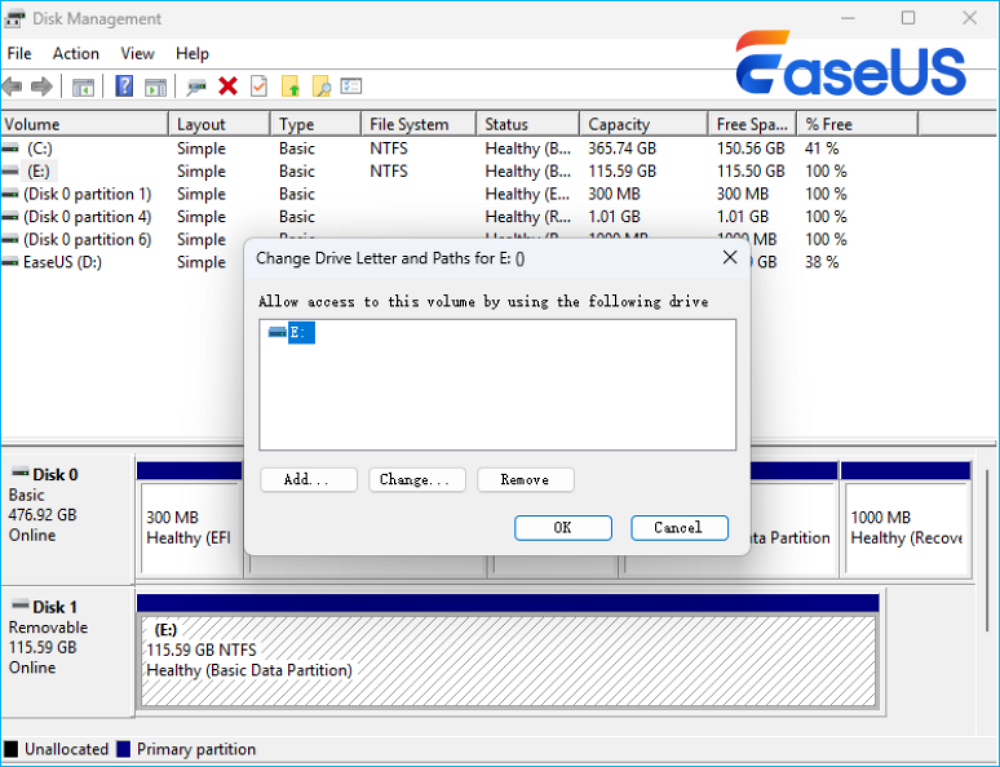
Step 1. Press Windows + X and select Disk Management, and locate your USB drive.
Step 2. Right-click the USB partition and choose Change Drive Letter and Paths. Click Add (or Change if a letter already exists) to assign an unused drive letter and click OK.
If your USB drive has sustained physical damage, attempting to repair it yourself may be futile. In such cases, if the data on the USB drive is critically important, the best course of action is to consult a professional data recovery service.
How to Format a Corrupted USB Drive (When Repair Fails)
Before formatting, note that this is a final reset option. Once formatted, existing files on the USB device are erased. Make sure you have a backup in advance, or try a data recovery service first.
Method 1. Use EaseUS Partition Master
EaseUS Partition Master provides a safer formatting workflow with preview and confirmation features. Without typing any command lines, you can easily format the corrupted USB flash drive.
Step 1. Launch EaseUS Partition Master and identify your USB drive carefully by size and label.
Step 2. Right-click the USB partition and select Format. Choose the desired file system (FAT32, exFAT, or NTFS).
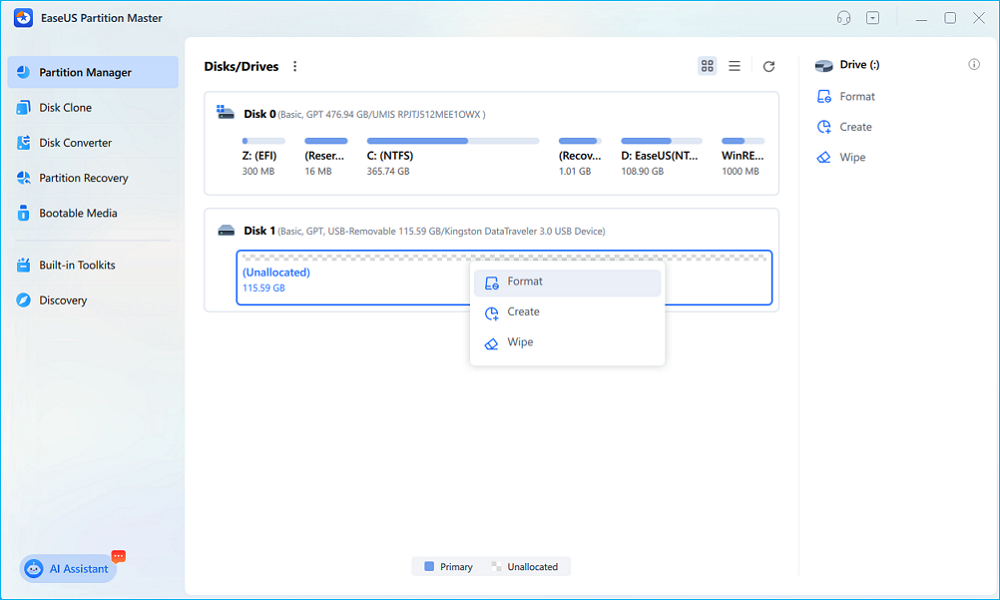
Step 3. Preview the formatting operation to confirm the correct drive. Click Execute the Task and Apply to start formatting.
Method 2. Use File Explorer
File Explorer offers a quick formatting option suitable for simple cases. While convenient, it offers limited control and no preview, so users should verify the correct drive before proceeding.
Step 1. Open File Explorer and right-click the USB drive and select Format.
Step 2. Choose a file system. Uncheck Quick Format to enable a deeper scan (takes longer).
Step 3. Click Start and confirm the warning message. Wait for formatting to complete.
Method 3. Format the USB Drive Using Command Prompt (DiskPart)
DiskPart is a powerful disk management tool, but it permanently erases data and leaves no room for mistakes. Follow the steps below carefully to format the USB with Diskpart commands:
Step 1. Press WIN + R, type cmd in the Run box, and press Ctrl + Shift + Enter to open Command Prompt as administrator.
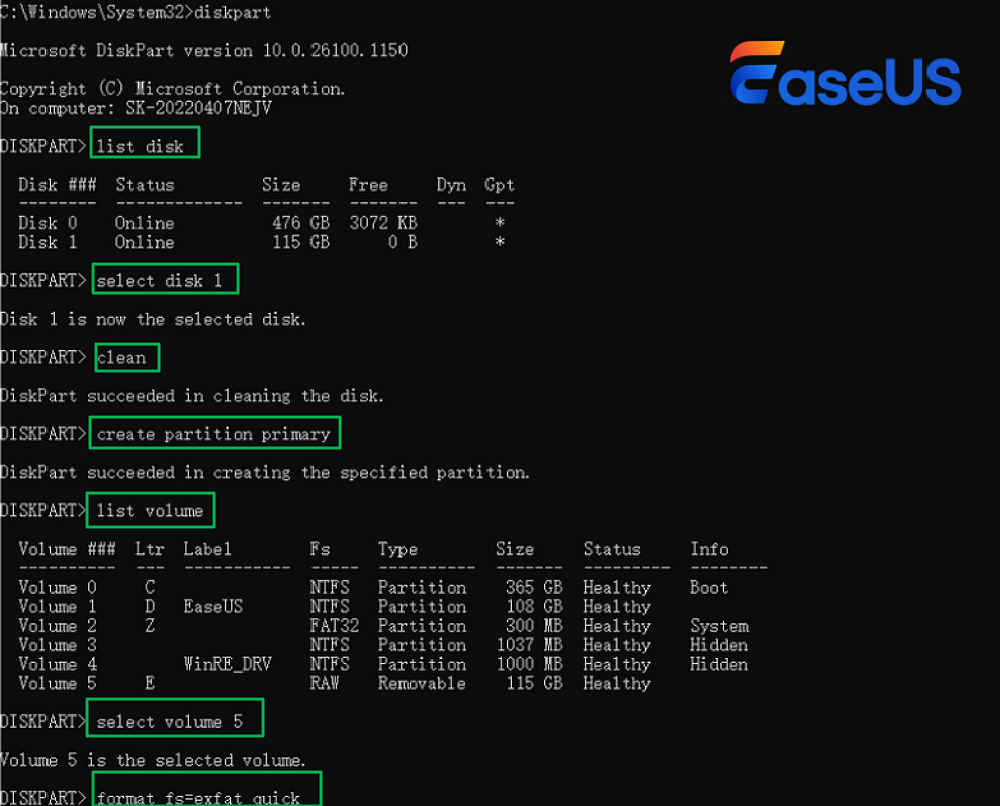
Step 2. Type diskpart and press Enter. Then, type the following command lines in turn and follow each with Enter:
- list disk
- select disk X (Replace X with the correct disk number)
- Clean
- create partition primary
- list volume
- Select volume 5 (Replace 5 with the correct number)
- format fs=exfat quick (Replace exfat with fat32/ntfs based on your needs)
Conclusion
A corrupted USB drive does not automatically mean data loss. In many cases, the damage is limited to the file system and can be repaired if handled carefully. By following a low-risk repair sequence and avoiding premature formatting, you significantly improve your chances of restoring both the USB drive and its data.
FAQs About How to Fix a Corrupted USB
- Can a corrupted USB drive be fixed without formatting?
Yes. If corruption is logical and the drive is still detected by the system, file system repair tools or error-checking utilities can often restore access without erasing data.
- Why does Windows keep asking me to format my USB drive?
This occurs when Windows cannot read the file system, typically due to corruption, malware, or file-system incompatibility, rather than physical damage.
- Does formatting always fix a corrupted USB drive?
Formatting removes file system errors but erases all data. It should only be used after repair attempts have failed or after data has been safely recovered.
- Is a RAW USB drive permanently damaged?
Not necessarily. A RAW USB drive often indicates file system corruption, and data can sometimes be recovered before formatting.